

Introduction
The Surface Pro combines the convenience of a tablet with the power of a laptop, making it a favorite among tech enthusiasts. Nonetheless, encountering screen problems can be frustrating for users relying on their device’s seamless functionality. If you’re asking ‘why is my Surface Pro screen not working,’ this guide aims to provide comprehensive solutions. We will explore common symptoms, dive into troubleshooting methods, and share tips to maintain your device’s peak performance. Let’s resolve these issues so you can enjoy uninterrupted productivity.

Common Symptoms of Surface Pro Screen Issues
Identifying the symptoms is crucial to diagnosing screen issues effectively. Here are prevalent problems users face:
-
Unresponsive Touch Functionality: When taps or swipes fail to register, it could point to software conflicts or underlying physical damage.
-
Screen Flickering or Flashing: Flickering is distracting and typically related to driver, software, or connection issues.
-
Dead Pixels or Black Screen: Dead pixels appear as small, unlit dots, while a completely black screen suggests severe hardware or software failures.
Pinpointing these symptoms helps direct us towards appropriate solutions.
Quick Troubleshooting Steps
Before diving into more technical solutions, let’s start with some basic checks:
-
Restart Your Device: Often, a simple reboot resolves software glitches causing screen issues. Press the power button, and choose to restart your Surface Pro.
-
Check for Software Updates: Ensure your Surface Pro is up-to-date. Navigate to Settings > Update & Security > Windows Update and install available updates. Updates often include fixes that might resolve your screen problems.
-
Inspect for Physical Damage: Check your Surface Pro’s screen, edges, and ports for visible damage. Even subtle external damage can affect internal functionality.
If these steps don’t resolve the issue, it may be time to investigate software-related causes.
Software Solutions for Screen Problems
Software issues often underlie screen malfunctions and resolving them can restore proper functionality:
-
Updating Display Drivers: Outdated or corrupted drivers can disrupt screen performance. Open Device Manager, locate Display adapters, right-click, and tap ‘Update driver’.
-
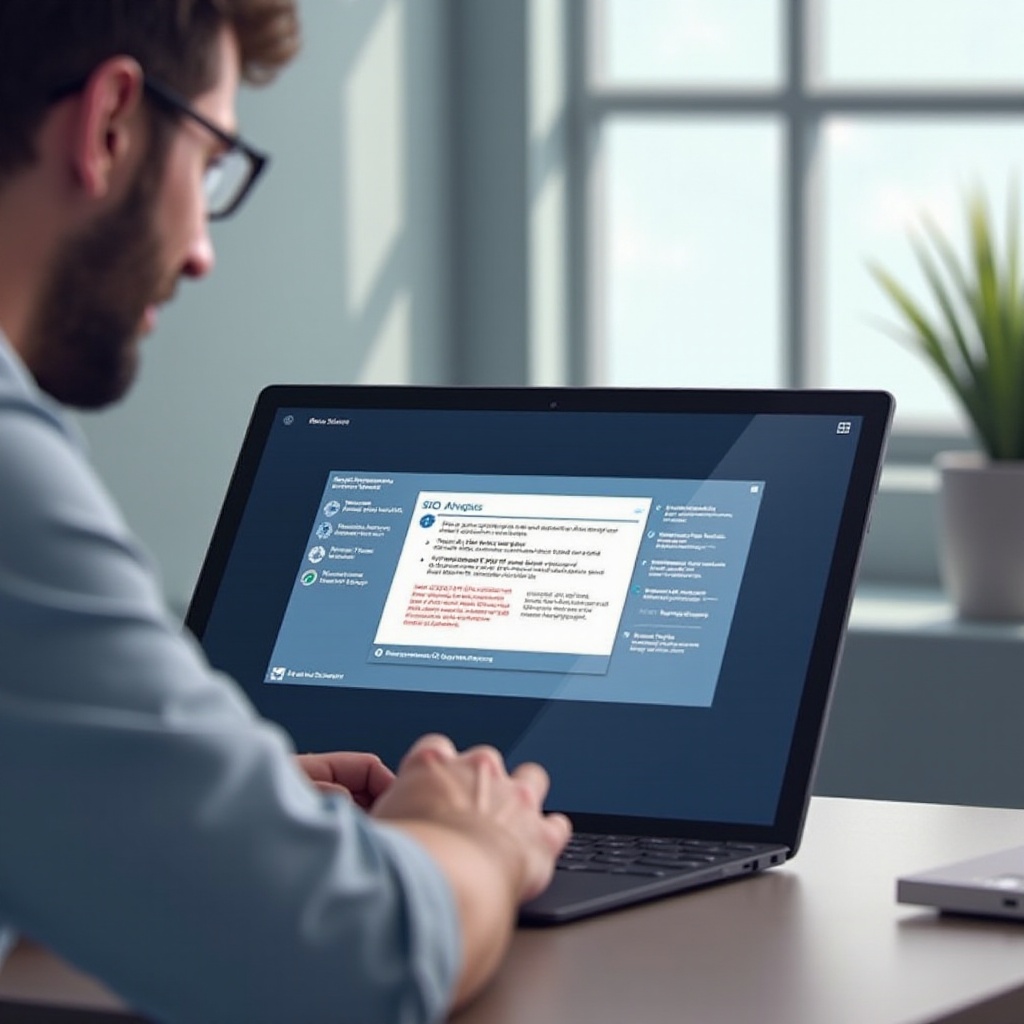
Running the Surface Diagnostic Toolkit: Microsoft provides a tool to diagnose and address issues. Download it from the official Microsoft website and follow the instructions to check your device.
-
Performing a System Restore: If recent changes led to problems, restoring your system to an earlier point might help. Go to Control Panel > Recovery > Open System Restore and follow the steps.
If software solutions are ineffective, it’s essential to assess possible hardware issues contributing to the problem.
Hardware Considerations and Fixes
The source of these problems might lie in hardware malfunctions. Here are some methods to address potential hardware issues:
-
Examining Screen Cables and Connections: Loose internal connections can cause screen failures, requiring professional assistance to inspect and secure them.
-
Using an External Monitor for Diagnosis: By connecting an external monitor, you can determine if the issue is confined to the Surface Pro screen. If the external monitor works fine, your Surface Pro screen might be at fault.
-
Identifying Battery or Power Issues: A malfunctioning battery can lead to screen problems. Test your device by using a different power source or adapter.
If these considerations do not yield results, advanced troubleshooting methods might be necessary to address persistent issues.
Advanced Solutions for Persistent Issues
Persistent problems might require more significant interventions:
-
Factory Reset as a Last Resort: Performing a factory reset erases all data, so it’s crucial to back up your files beforehand. Navigate to Settings > Update & Security > Recovery > Reset this PC.
-
Replacing Damaged Hardware Components: If your device has significant physical damage, component replacement might be necessary. Professional repairs may protect your warranty while ensuring functionality.
Advanced solutions are drastic but often necessary to restore device performance comprehensively.
Maintaining Screen Health and Longevity
Prevention is key to avoiding recurring issues. Here’s how to maintain your screen:
-
Best Practices for Screen Care: Regularly clean your screen with a microfiber cloth and avoid abrasive cleaners.
-
Prevention of Physical Damage: Use a protective case to safeguard against impacts, and apply a screen protector to prevent scratches.
-
Importance of Regular Maintenance: Regularly uninstall unnecessary apps and manage storage to minimize software conflicts.
These practices not only extend your Surface Pro’s lifespan but ensure it performs optimally for years to come.
Conclusion
The Surface Pro’s functionality can be hindered by screen issues, but with a clear understanding and approach to troubleshooting, these problems can be resolved. From quick fixes to advanced steps, addressing these challenges can revive your device’s performance. Regular maintenance remains vital to keep your Surface Pro running without future hitches.
Frequently Asked Questions
What should I do if my Surface Pro screen is flickering?
Ensure your drivers are updated and that software updates are installed. If flickering continues, consider reverting display drivers or seeking professional assistance.
How can I update my Surface Pro’s display drivers?
Open Device Manager, locate Display adapters, right-click your driver, and select ‘Update driver’. Ensure you’re connected to the internet.
Is screen replacement covered under the Surface Pro warranty?
Warranty coverage varies; manufacturing defects are typically covered, but accidental damage may not be. Verify specifics with Microsoft support.