

Introduction
Screen discoloration issues can disrupt your MacBook Pro’s functionality and cause frustration. This guide explores the reasons behind these issues, how to diagnose them, and steps to resolve them effectively. By recognizing the symptoms early and taking informed steps, you can maintain your screen’s quality and improve your overall user experience.
What Is Screen Discoloration?
Screen discoloration refers to unexpected changes in the way colors are displayed on your MacBook Pro, such as unusual tints or color distortions. Understanding these changes is crucial to addressing potential hardware or software malfunctions. Prompt action can restore your display’s clarity and prevent further complications.
Causes of Screen Discoloration
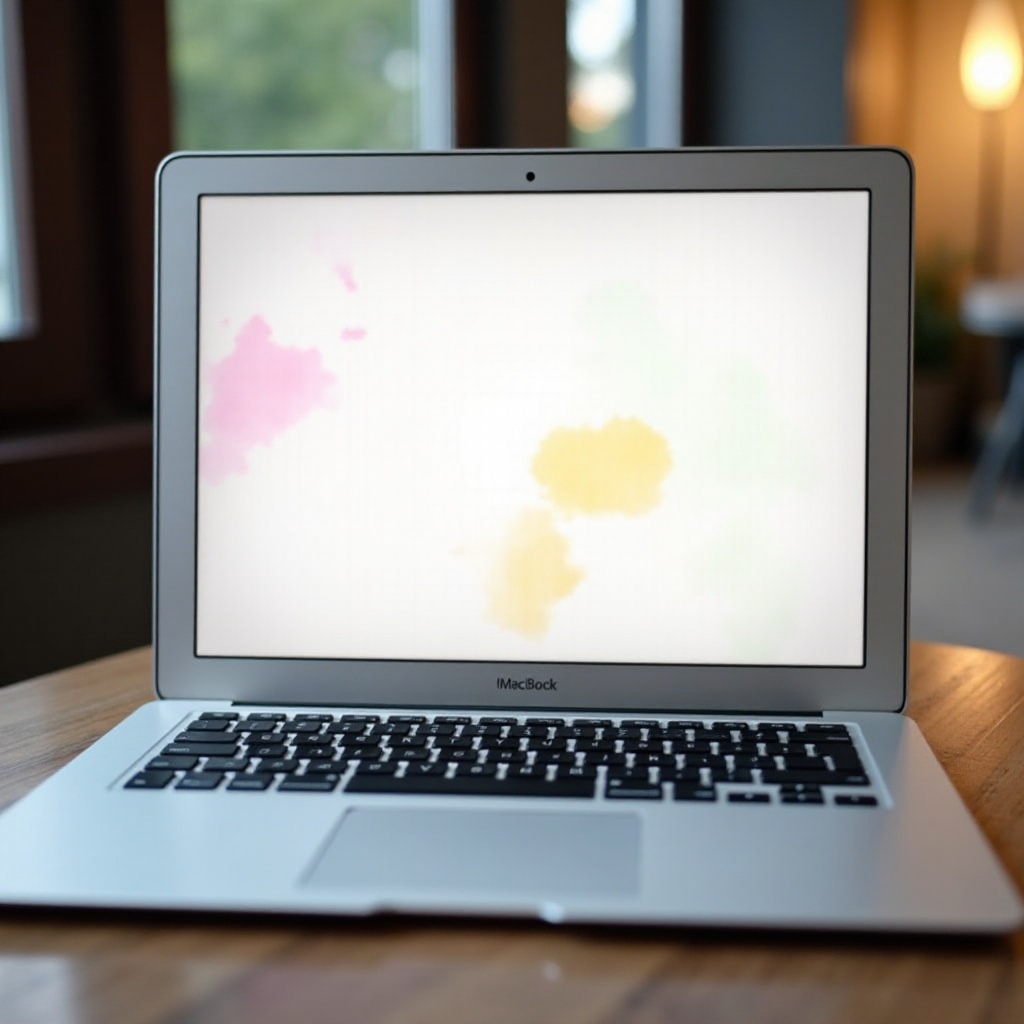
Identifying what causes screen discoloration is crucial for fixing the problem:
-
Physical Damage: Physical impact or pressure can lead to color distortions or damage to the internal connectors.
-
Software Issues: Sometimes, outdated or corrupt software affects how colors display, causing discoloration.
-
Display Cable Problems: Loose or damaged cables can lead to poor connections between the display and the computer’s main board, resulting in discoloration.
Understanding these common causes will prepare you for the next steps in diagnosing and resolving the issue.
How to Diagnose the Issue
Effective problem-solving starts with correct diagnosis. Begin with a visual inspection and follow up with software diagnostics:
-
Visual Inspection: Look for physical damage like cracks or irregular patterns of discoloration that might signal hardware issues.
-
Software Diagnostics: Use MacBook’s Apple Diagnostics to detect any software conflicts or hardware malfunctions potentially affecting your display.
Proper diagnosis ensures appropriate solutions, whether they involve software adjustments or hardware repairs.
Troubleshooting Steps
Once diagnosed, take these steps to address screen discoloration:
-
Check Software Settings: In System Preferences, go to Displays to confirm that your color settings are correct.
-
Reboot and Reset PRAM/NVRAM: A simple reboot can fix minor glitches, while resetting PRAM/NVRAM may resolve display-related issues.
-
Inspect Hardware Connections: If you feel comfortable, check inside your MacBook for a secure display cable and other connections.
Following these steps helps isolate the problem and potentially solve minor issues affecting the display.
Solutions and Fixes
Adopt these solutions according to your diagnosis:
-
DIY Fixes: Handle software issues by updating the operating system, reinstalling apps, or reverting system settings.
-
Professional Repair Options: If hardware is at fault, consider seeking help from AppleCare or professional service providers.
Choosing the right solution ensures long-lasting clarity and performance of your MacBook Pro display.
Preventative Measures
Prevent screen discoloration with these techniques:
-
Handling Your MacBook Pro with Care: Protect your device from drops or pressure by using cases and handling with care.
-
Regular Software Updates: Always update your macOS to prevent bugs that can impact display settings.
Implementing these habits can preserve the quality of your display and prevent future issues.
Conclusion
Quickly addressing screen discoloration will enhance your MacBook Pro experience and protect your investment. By understanding the causes and applying both short-term solutions and long-term preventive measures, you ensure your screen remains vibrant and clear. For persistent issues, relying on professionals provides reliable resolutions.
Frequently Asked Questions
What should I do if my MacBook Pro screen is discolored?
Initially, diagnose if it’s due to a software or hardware issue. Perform basic troubleshooting like updating software and checking display settings. If unresolved, seek professional help.
Can software updates cause screen discoloration?
Although rare, software updates can lead to display issues due to incompatibility or bugs. Back up your system prior to updates and monitor any reported issues.
How much does it cost to fix a discolored screen on a MacBook Pro?
Costs vary depending on whether you need a software solution or hardware replacement. While some minor fixes are inexpensive, screen replacements can cost several hundred dollars. Consider using AppleCare for coverage.