

Introduction
Experiencing issues with configuring your Xbox controller via USB on your PC can be incredibly irritating, halting your gaming experience altogether. This problem is not just a simple nuisance; it fundamentally impacts how you play your games. Despite the widespread compatibility of Xbox controllers with PCs, users may encounter connection issues for various reasons. Addressing and fixing these problems promptly can ensure you return to your gaming without unnecessary interruptions. This guide provides you with straightforward and effective steps to troubleshoot and resolve common USB connectivity problems effectively.
Understanding the Connection Problem
Before resolving the issue, it is essential to understand its root causes. Your Xbox controller may not be configuring by USB due to several common reasons, ranging from hardware malfunctions to software glitches. Here are a few potential causes:
- Hardware Issues: Problems such as a defective USB cable or port can hinder connection.
- Driver Conflicts: Outdated or incompatible drivers may cause connectivity problems.
- Windows Settings: Incorrect settings could prevent the controller from configuring correctly.
By identifying these typical causes, you set the stage for efficient troubleshooting. Deciphering whether the issue is hardware or software-related can save you considerable time and frustration when searching for a solution.
Step-by-Step Troubleshooting
With potential causes identified, tackle the problem using these targeted troubleshooting steps:
- Check the USB Cable and Port:
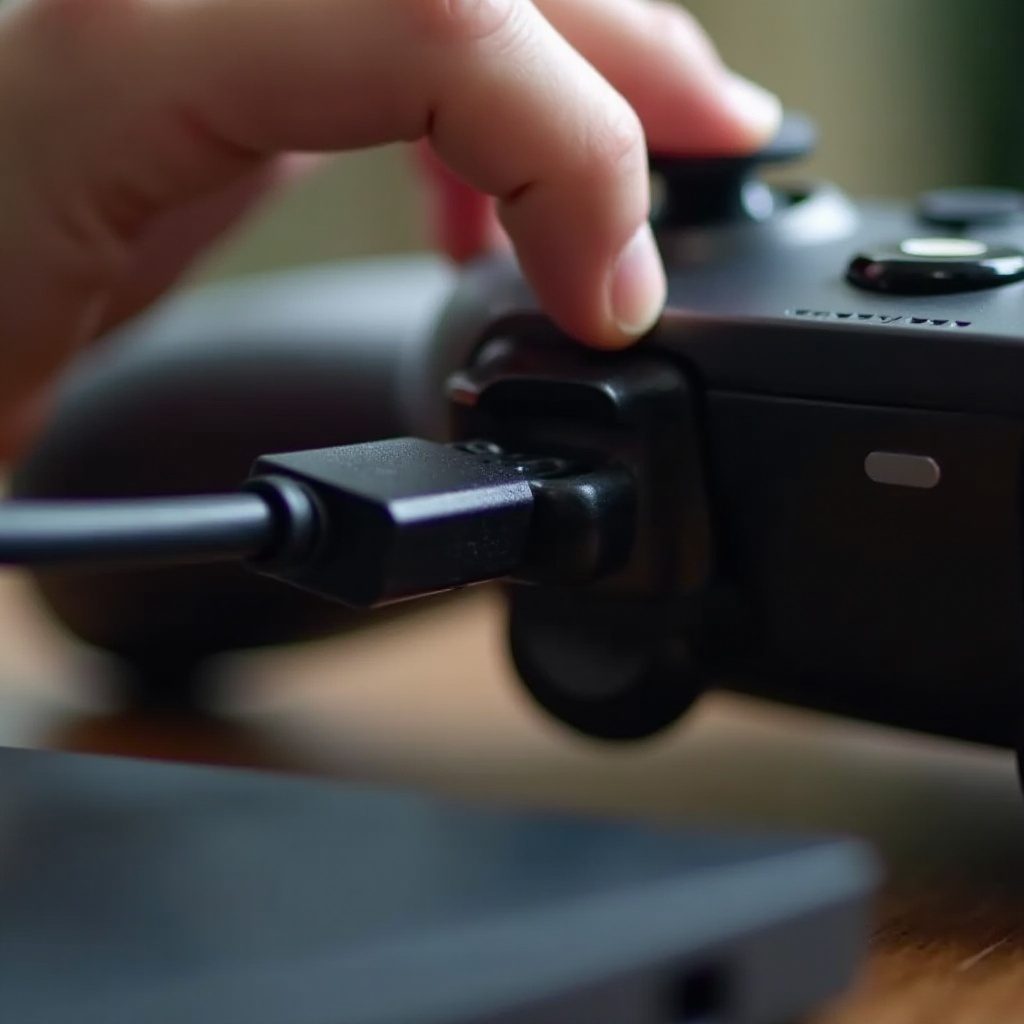
- Connect the controller to another USB port on your PC.
-
Use a different USB cable to check for wear and tear issues.
-
Update Device Drivers:
- Open Device Manager from the Start menu.
- Locate the Xbox controller under ‘Universal Serial Bus controllers.
-
Right-click and choose ‘Update Driver.
-
Use Device Manager for Troubleshooting:
- If updating the driver does not work, uninstall the existing driver and reboot your PC.
- Allow Windows to automatically reinstall the necessary drivers.
These initial steps usually address the problem effectively. Keeping your drivers updated is crucial for enhanced functionality and maintaining compatibility with gaming peripherals.
Advanced Solutions
If basic troubleshooting does not resolve the issue, explore these advanced solutions:
- Reinstall Xbox Controller Drivers:
- Visit the official Xbox website to download the correct driver for your controller model.
-
Manually install the driver on your PC and reconnect the controller.
-
Check for Windows Updates:
- Go to ‘Settings’ > ‘Update & Security’ > ‘Windows Update.
-
Ensure your system uses the latest updates to fix possible compatibility issues.
-
Try Different USB Ports or Cables:
- Use USB 2.0 or USB 3.0 ports variously to determine which offers better connectivity.
- Borrow a cable from another device to see if the cable is the issue.
Delving into these advanced solutions often uncovers the root cause of persistent problems. They focus on more technical aspects and help resolve issues that basic troubleshooting might overlook.
Alternative Connection Methods
Sometimes, USB might not be the most reliable method, so exploring other connection options can be beneficial:
- Setting Up a Bluetooth Connection:
- Confirm your PC has Bluetooth capabilities.
- Press and hold the pair button on your Xbox controller until the Xbox button flashes.
-
Go to ‘Settings’ > ‘Devices’ > ‘Bluetooth & other devices’ and pair your controller.
-
Using Xbox Wireless Adapter:
- Consider purchasing an Xbox Wireless Adapter for a simplified connection process.
- Insert the adapter into a USB port, press the button on the adapter and the controller’s pair button simultaneously to establish a connection.
Evaluating these alternatives not only provides a backup plan for USB issues but may also enhance the flexibility of how you connect and use your Xbox controller.
Maintenance and Prevention Tips
Preventing future connection problems through regular maintenance and adopting good practices is essential:
- Preventive Steps to Avoid Future Issues:
- Regularly check for signs of wear on cables and ports.
- Keep both your PC and Xbox controller firmware updated to minimize compatibility concerns.
- Store your controller properly to protect it from physical damage.
Routine checks and maintenance not only prolong the hardware’s lifespan but ensure consistent, uninterrupted gaming experiences.
Conclusion
USB connectivity issues between your Xbox controller and PC are common, but most are fixable with the right approach. From examining hardware and software issues to considering alternative connection methods, these steps ensure your gaming remains uninterrupted. Addressing these issues early on can save valuable time and enhance your gaming enjoyment, allowing you to remain focused on the game.
Frequently Asked Questions
Why isn’t my Xbox controller recognized by my PC?
There are several potential reasons such as USB cable issues, driver conflicts, or a damaged port on your PC. Ensuring all drivers are up to date and testing with different cables can help resolve this.
Can I use the Xbox controller wirelessly if USB doesn’t work?
Yes, you can use Bluetooth or an Xbox Wireless Adapter to connect your Xbox controller wirelessly to your PC, providing more flexibility and fewer connectivity issues.
Is there any downside to using Bluetooth instead of USB?
While Bluetooth offers wireless convenience, it may introduce slight input lag compared to a direct USB connection. This might not be ideal for gamers seeking the highest accuracy and response times.