

Introduction
Resetting your UE Boom speaker can be an effective solution for resolving common issues such as connectivity problems, audio glitches, and software bugs. Whether your speaker isn’t pairing properly, or the sound quality has degraded, performing a reset often restores optimal functionality. This guide will equip you with the necessary steps and tips to reset and maintain your UE Boom speaker effectively.
Understanding the Need for a Reset
To make the most of your UE Boom speaker, it’s essential to know when a reset is necessary. Resetting serves as a fix for several technical hitches that may arise over time.
– Why Resetting is Necessary
As you use your speaker over time, software glitches or connectivity problems may arise, affecting performance. A reset helps clear these temporary issues, ensuring your speaker operates smoothly.
– Identifying When to Reset Your UE Boom
Signs indicating a need for a reset include persistent connectivity issues or erratic behavior. If your speaker is unresponsive despite being charged or produces distorted audio, it’s time for a reset.
Understanding how to identify such issues ensures you can promptly address them with a reset. Knowing your speaker’s model is also crucial when considering the reset process.
UE Boom Speaker Models Overview
UE Boom models may have subtle differences in reset procedures and features. Understanding these nuances ensures effective troubleshooting.
– Differences Across Models
Different models like the UE Boom 2 and Boom 3 offer unique features. While core functionalities are similar, some model-specific reset methods can maximize efficiency.
– Features and Functionalities
Despite differences, all models maintain high sound quality and durability. Familiarizing yourself with your speaker’s features facilitates a smoother reset and optimization process.
With this foundational knowledge, you’re better prepared to efficiently reset your speaker using the appropriate method for your model.
Methods to Reset Your UE Boom Speaker
Each UE Boom model may require slightly different reset processes. Here’s how you can reset your UE Boom speaker step by step.
– Performing a Soft Reset
A soft reset can resolve minor issues quickly:
1. Turn on your UE Boom speaker.
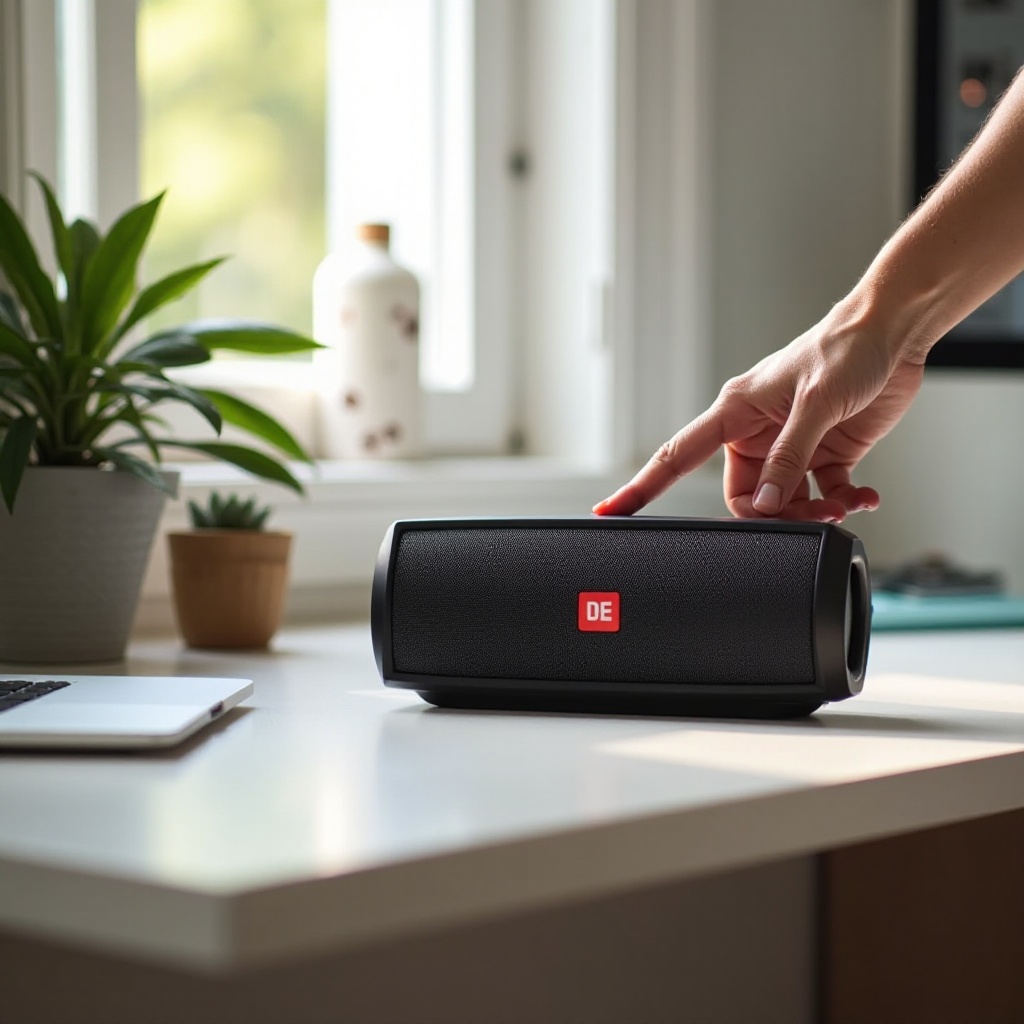
2. Press and hold the power button and volume down button simultaneously for about 10 seconds.
3. Release the buttons once the speaker turns off and automatically restarts.
– Performing a Hard Reset
For more stubborn issues, a hard reset can be more effective:
1. Power on the speaker.
2. Hold the power and volume up buttons simultaneously for approximately 15 seconds.
3. Release them and wait for the speaker to reset fully.
– Factory Reset Instructions
Resort to a factory reset if other methods fail:
1. Turn off the speaker.
2. Hold the power button and volume down button until an indication sound is heard.
Following these steps should address most software-related problems effectively. However, further troubleshooting might be necessary if issues remain.
Troubleshooting Common Issues Post-Reset
Even after resetting, some issues might persist. Here are additional troubleshooting steps to consider.
– Connectivity Problems
If your speaker still struggles to connect, try these tips:
– Ensure the speaker is in pairing mode.
– Toggle Bluetooth off and back on on your device.
– Restart your Bluetooth device and try reconnecting.
– Audio Quality Concerns
For ongoing audio issues, consider:
– Checking and adjusting volume levels and settings.
– Verifying that all firmware updates are installed.
– Testing the speaker with different devices to isolate the issue.
Addressing these concerns can greatly improve your speaker’s performance post-reset, leading to a richer audio experience.
Tips for Optimizing Your Speaker Post-Reset
After a successful reset, enhance your speaker’s performance with these optimization tips.
– Enhancing Bluetooth Connectivity
– Keep your devices updated for optimal Bluetooth compatibility.
– Maintain a clear line of sight for better connectivity.
– Occasionally clear the Bluetooth cache on your connected devices.
– Maximizing Sound Performance
– Position your speaker strategically for even sound distribution.
– Use the UE Boom app to tweak audio settings to your preference.
– Regularly clean the speaker to avoid obstructions in sound output.
These optimization techniques help ensure that your UE Boom speaker delivers the best possible performance going forward.
Maintaining Your UE Boom Speaker
Proper maintenance extends your speaker’s lifespan and performance.
– Regular Updates and Maintenance
– Install firmware updates as they become available to improve device performance and fix bugs.
– Periodically inspect cables and connections for any signs of wear.
– Storage and Handling Tips
– Store your speaker in a cool, dry place when it’s not in use.
– Avoid overcharging to maintain battery health.
– Clean your speaker regularly with a soft, dry cloth to keep it in prime condition.
By adhering to these maintenance practices, you’ll keep your UE Boom speaker functioning well for years to come.
Conclusion
Resetting your UE Boom speaker is a practical solution for addressing various issues and restoring optimal functionality. By understanding when and how to perform a reset, along with providing proper maintenance, you can ensure your UE Boom speaker remains a reliable source of enjoyment over the long haul.
Frequently Asked Questions
How often should I reset my UE Boom speaker?
Reset your speaker only when you encounter issues such as connectivity problems or abnormal performance.
Will resetting my speaker delete my saved settings?
Yes, a factory reset will clear all customized settings, returning the speaker to its original state.
What should I do if my speaker won’t reset?
Ensure you’re following the correct steps for your model. If issues persist, contact customer support for assistance.