

Connecting wireless headphones to gaming consoles can often feel like a daunting task. If you’re looking to pair your Apple AirPods with a PlayStation 4, a Bluetooth adapter is the key to success. This guide will show you how to choose, set up, and optimize the right Bluetooth adapter to ensure a seamless audio experience and take your gaming to the next level.
Introduction
Gamers increasingly demand freedom of movement and high-quality audio, which is why many are turning to AirPods for their PS4 gaming sessions. The PS4’s native audio settings do not support Bluetooth devices directly, making it essential to use an external adapter. By using a Bluetooth adapter, you can overcome this limitation and enjoy a wire-free gaming experience.
The concept might seem intimidating, but with the right guidance, you can easily set up your AirPods for PS4 gaming through a Bluetooth adapter. This article will walk you through the process, offering tips on choosing the right device, installation, and setup, as well as optimizing your gaming and audio performance.
Understanding Bluetooth Adapters for PS4
To successfully connect AirPods to a PS4, you need a reliable Bluetooth adapter. But what exactly is it, and why is it essential in this scenario?
What is a Bluetooth Adapter?
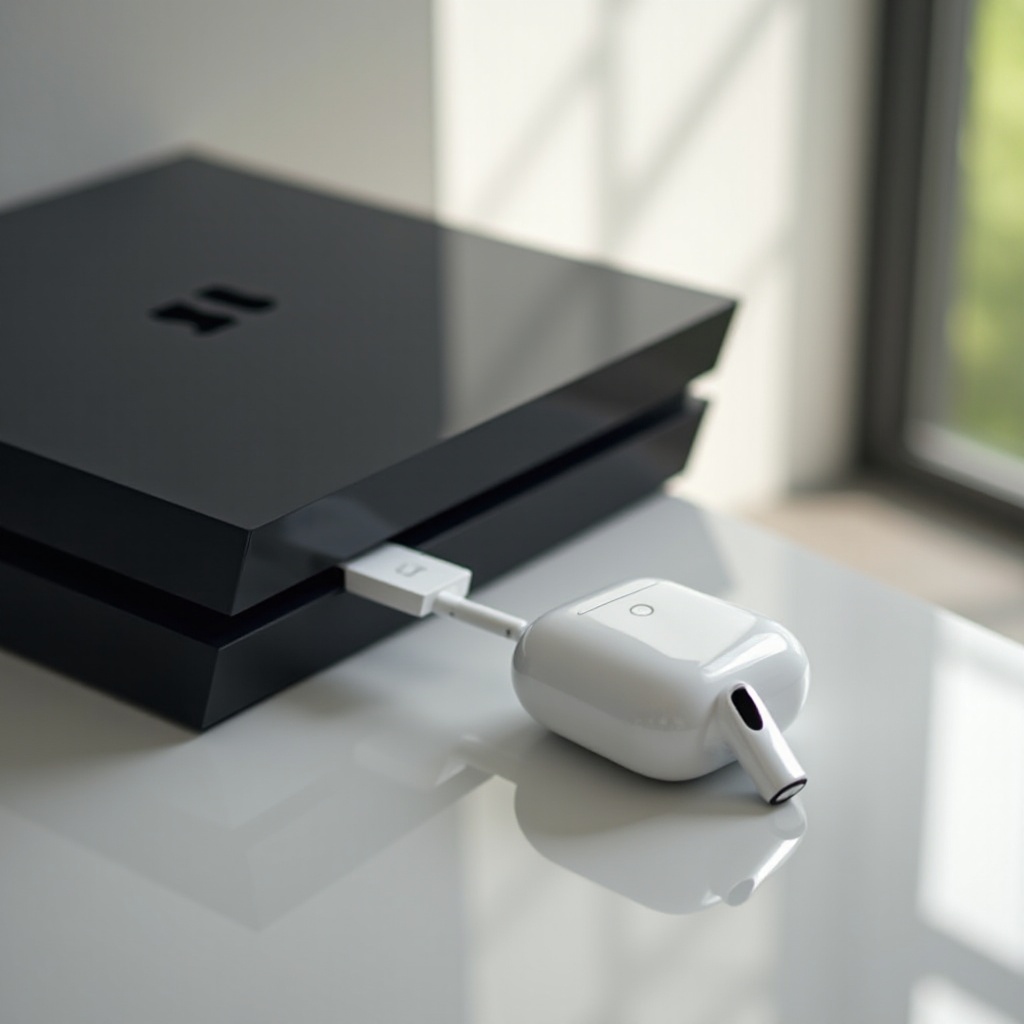
A Bluetooth adapter is a device that allows non-Bluetooth enabled systems to connect with Bluetooth devices. It acts as an interface between the PS4 and AirPods, facilitating wireless audio streaming. These adapters are generally plugged into the PS4’s USB port or headphone jack to transmit sound.
Why You Need It for PS4 and AirPods
The PlayStation 4 does not support Bluetooth audio devices natively due to bandwidth restrictions that could affect system performance. A Bluetooth adapter bypasses this limitation, enabling direct audio transmission from the console to your AirPods, ensuring you can enjoy high-quality sound without wires.
Choosing the right adapter is crucial for the best audio experience. Let’s explore how to select one that fits your needs.
Choosing the Best Bluetooth Adapter for Your PS4
Selecting a Bluetooth adapter for your PS4 gaming with AirPods involves considering several critical features, comparing popular options, and evaluating for your budget.
Key Features to Look For
- Compatibility: Ensure the adapter works with both PS4 and AirPods. Compatibility usually means checking audio and system support specifications.
- Latency: For gaming, low latency is critical to maintain sync between audio and video.
- Audio Quality: Look for features like support for high-definition audio codecs such as aptX.
Comparing Popular Brands and Models
Several brands offer Bluetooth adapters compatible with PS4. Consider models like Creative BT-W3, Avantree Leaf, and HomeSpot USB for their reliability and positive reviews from the gaming community.
Budget vs. Premium Options
Whichever adapter you choose, make sure it aligns with your budget. While premium models might offer advanced features, budget-friendly options can still adequately meet basic streaming needs.
Once you’ve selected your adapter, the next step is installation and setup, which we’ll cover next.
Installing and Setting Up Your Bluetooth Adapter
Proper installation and configuration of your Bluetooth adapter are essential for seamless audio integration into your gaming sessions.
Step-by-Step Installation Guide
- Unbox the Adapter: Carefully remove the device and any included components.
- Connect the Adapter: Plug the adapter into the PS4’s USB port or headphone jack, as instructed by the product manual.
- Pairing Mode: Activate pairing mode on the adapter, usually involving holding down a button.
- Connect AirPods: With the AirPods in their case and lid open, press and hold the case button until the light flashes white, indicating pairing mode.
- Complete the Connection: The adapter will typically light up or blink when successfully paired with your AirPods.
Troubleshooting Common Setup Issues
If you encounter issues, ensure both devices are in pairing mode and close enough for initial pairing. Restarting both the PS4 and AirPods can resolve most connectivity problems.
Optimizing Audio Settings for Best Performance
Adjust the audio settings on your PS4 to ensure you get the best experience. Navigate to the console’s settings to tweak volume levels and enable features that enhance audio quality.
Having set up your adapter and AirPods, it’s time to get the most out of your gaming by enhancing your experience further.
Enhancing Your Gaming Experience with AirPods
Enjoying smooth and rich audio is a must for immersive gaming. Here are some tips to refine your experience once your devices are connected.
Tips for Reducing Latency
Bluetooth devices can occasionally encounter latency. To minimize this:
– Select adapters that support low latency codecs.
– Use wired connections when severe latency affects your gameplay (e.g., competitive multiplayer).
Adjusting Sound Quality Settings
Explore sound settings within your PS4’s audio configuration menu, testing different levels to suit specific games. Some adapters offer equalizer settings to further fine-tune the sound.
Maintaining a Strong Connection
To keep a stable Bluetooth connection, avoid physical obstructions between the adapter and AirPods, and regularly update your adapter’s firmware for optimal performance.
By maintaining these best practices, you ensure your gaming sessions remain uninterrupted and of high quality.
Additional Tips and Maintenance
Routine maintenance and updates play vital roles in keeping your equipment running smoothly.
Regular Firmware Updates
Manufacturers occasionally release firmware updates to fix bugs and improve performance. Regularly check their websites or user manuals for any new releases.
Cleaning and Storage Recommendations
Keep your adapter and AirPods clean by gently wiping them down with a soft, dry cloth. Store devices in a safe, dry place when not in use, protecting them from dust and damage.
Conclusion
Using a Bluetooth adapter to connect AirPods to a PS4 significantly elevates your gaming experience. By selecting the right device, following proper setup procedures, and maintaining optimal audio settings, you enjoy top-notch sound quality and complete freedom of movement. Embrace this modern gaming audio solution and discover a new level of immersive play.
Frequently Asked Questions
Can I use any Bluetooth adapter with PS4 and AirPods?
Not all Bluetooth adapters are compatible. Select one specifically designed for PS4 and AirPods to ensure functionality.
How can I solve connectivity issues when using a Bluetooth adapter?
Check that both the adapter and AirPods are in pairing mode, and try restarting devices. Ensure the adapter is securely connected to the PS4.
Are there any adapters specifically recommended for gaming with AirPods?
Popular adapters include Creative BT-W3 and HomeSpot USB, both recommended for their reliability and gaming-centric features.