

Introduction
Opening the back cover of your HP laptop enables you to conduct minor repairs, upgrades, and carry out regular cleaning, which prolongs the laptop’s lifespan. By understanding how to safely access the device’s interior, you prevent possible damage that might result in costly repairs. Prioritize safety by gathering necessary tools and following the correct procedures.
Tools and Materials Needed
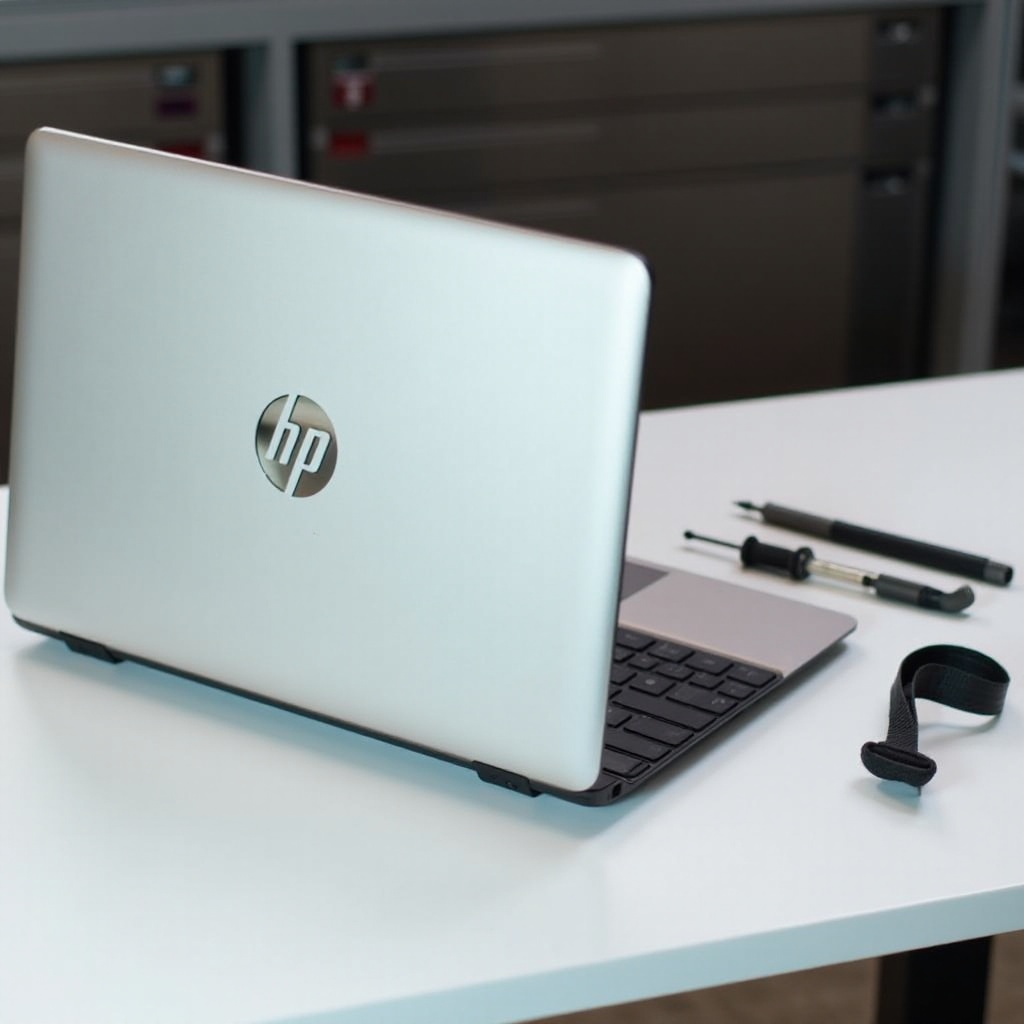
Having the right tools on hand is crucial for a smooth process when opening your HP laptop’s back cover. Essential tools include:
- A small Phillips screwdriver
- A plastic pry tool or an old credit card to avoid scratches
- An anti-static wristband, which although optional, is recommended for preventing electrostatic discharge
Gathering these tools is a wise first step, setting you up for a trouble-free experience.
Preparing Your HP Laptop
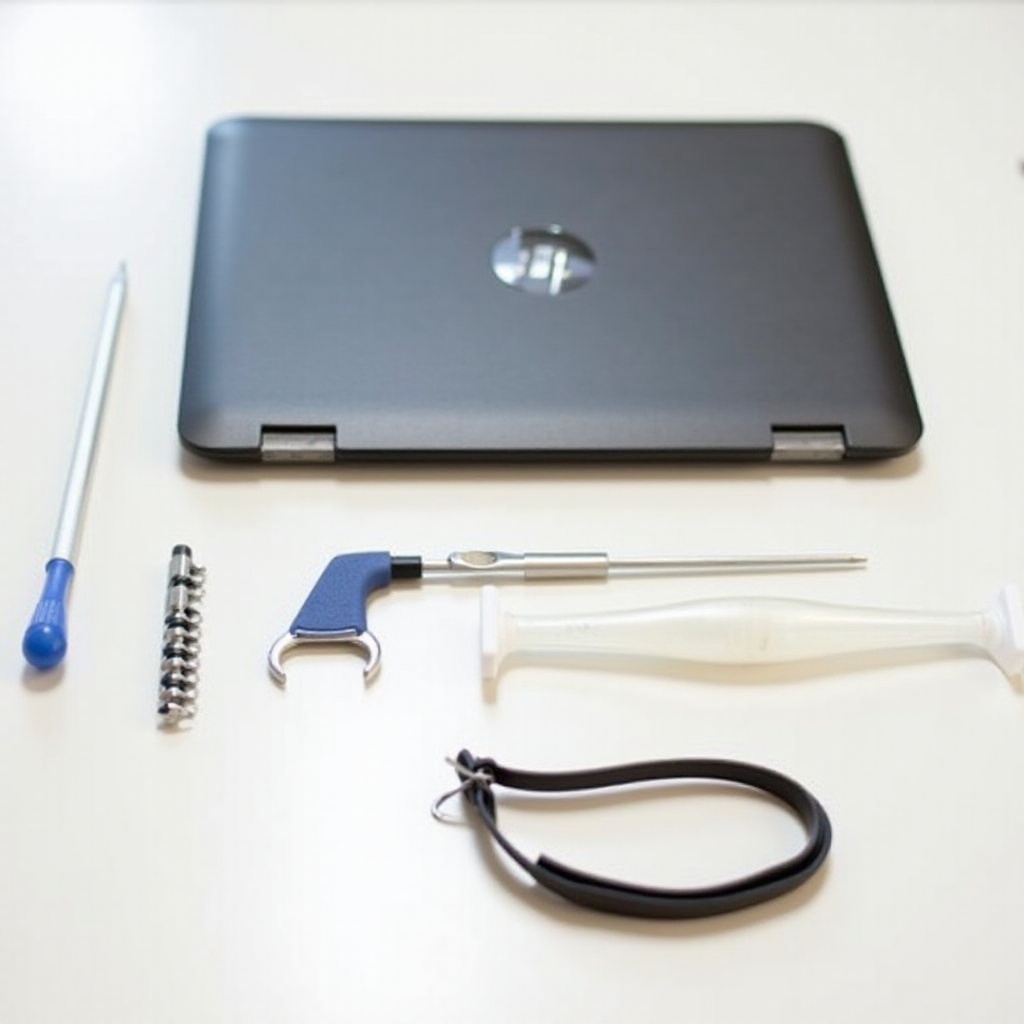
Preparation is key to successfully opening your laptop while safeguarding its components. Start by:
- Backing up important data to safeguard against unexpected data loss.
- Powering down the laptop completely, disconnecting it from the power source, and removing all peripherals.
- Preventing static damage by either using an anti-static wristband or regularly grounding yourself by touching a metal object.
Once these steps are complete, your laptop is ready for the opening process.
Step-by-Step Instructions
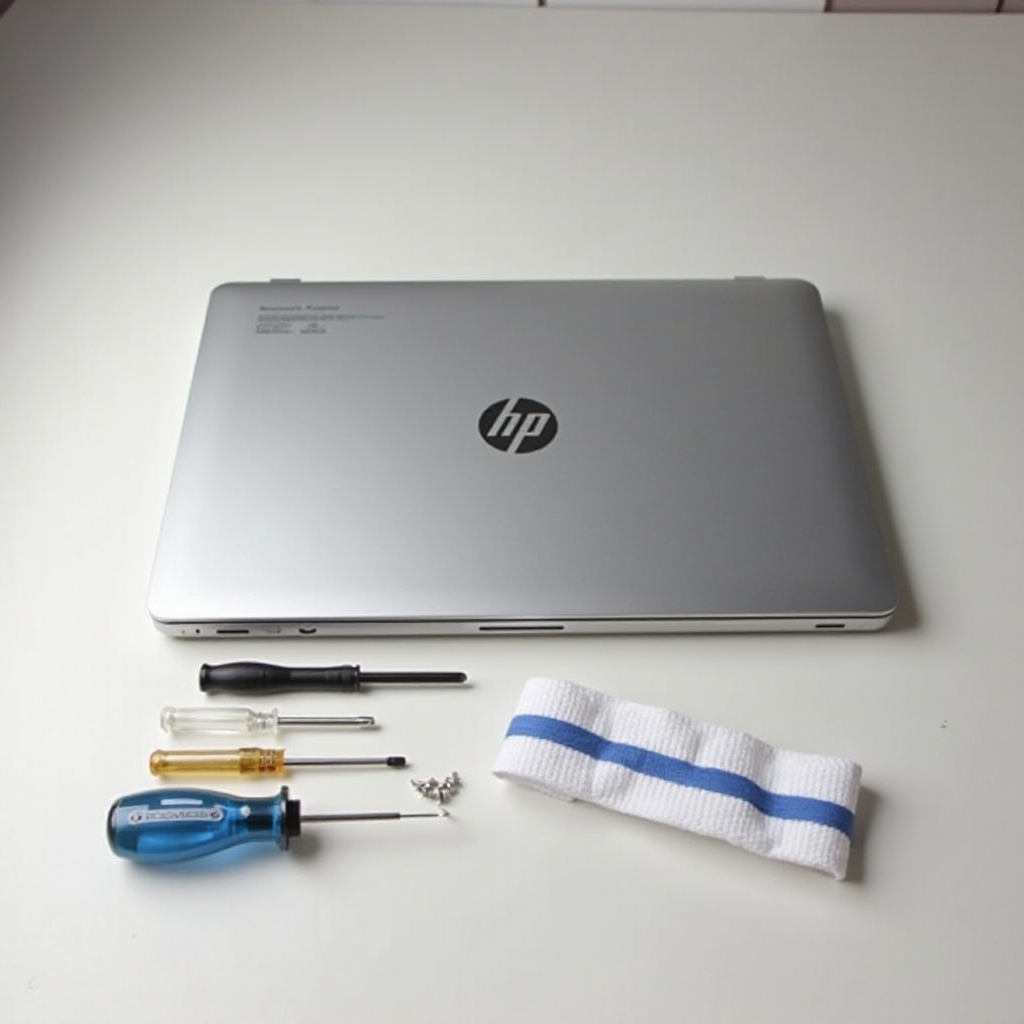
Follow these steps methodically to open your HP laptop’s back cover:
- Use the Phillips screwdriver to remove all visible screws. Double-check that none are hidden under rubber feet.
- Carefully use a plastic pry tool or credit card to gently open the cover by inserting it along the edges until the cover pops open.
- With the cover off, observe the internal components, including the battery, RAM, and hard drive, familiarizing yourself with their placements for future troubleshooting or upgrades.
These steps will allow for efficient access inside your laptop without inflicting damage.
Safety Tips for Handling Laptop Components
When dealing with internal parts, careful handling is necessary to avoid damaging them:
- Handle components such as the logic board and hard drives with care, as they are delicate.
- Use an anti-static wristband if available, or frequently ground yourself to prevent static build-up.
- Keep screws and small parts organized using a small container or magnetic mat.
By following these safety tips, you mitigate potential risks encountered when dealing with laptop components.
Troubleshooting Common Issues After Opening
After gaining access to your laptop, addressing certain common issues can improve its performance:
- Check for any loose connections and secure them back into place.
- Use compressed air to clear dust from fans and components to alleviate overheating.
- Assess hardware conditions and replace any visibly damaged components.
Resolve these problems to ensure optimal laptop performance moving forward.
Reassembling Your Laptop
Proper reassembly ensures your laptop functions normally post-maintenance:
- Align the back cover with the chassis and snap it back in place before securely fastening the screws.
- Reconnect external devices and power up your laptop, observing its performance during boot-up.
- Conduct basic operations to confirm that everything works correctly.
These steps complete the maintenance process, restoring your laptop’s functionality and extending its lifespan.
Conclusion
Gaining access to the inside of your HP laptop is a simple process with the right preparation and tools. This guide makes performing hardware upgrades, cleanings, and maintenance straightforward. While doing it yourself saves time and money, do not hesitate to seek professional help if needed to avoid any potential damages.
Frequently Asked Questions
Can opening my HP laptop void the warranty?
Yes, it can. Opening the laptop without professional assistance may void the warranty. Always check the warranty terms beforehand.
How often should I clean the inside of my HP laptop?
It’s recommended to clean the internal components every 6 to 12 months to prevent dust buildup and overheating.
What should I do if my laptop doesn’t turn on after reassembly?
Check all internal connections and ensure the battery and screws are properly seated. Persistent issues should be addressed by a professional.