

Introduction
Managing your Windows 10 display while keeping your computer active can optimize productivity and save energy. This feature is particularly advantageous for tasks like listening to music, downloading large files, or running background applications where visual supervision is unnecessary. Understanding how to turn off your screen without entering sleep mode means you can preserve system activity while extending the lifespan of your monitor.
In this guide, we’ll explore the essential techniques for controlling your display settings, from system options to third-party tools, troubleshooting steps, and advanced command prompt techniques, ensuring you can maintain your PC’s operations seamlessly.
Understanding Windows 10 Display and Sleep Options
Windows 10 offers a range of customizable settings for display and sleep functions. While display settings let you control when your screen turns off, sleep mode suspends all of your computer’s ongoing operations to conserve energy during longer periods of inactivity. Differentiating between display and sleep options allows you to tailor configurations for specific needs, like balancing power usage in a home or office environment.
Successfully managing these settings affords better control over your digital workspace. Let’s explore how you can set them efficiently to turn off your display without activating sleep mode.
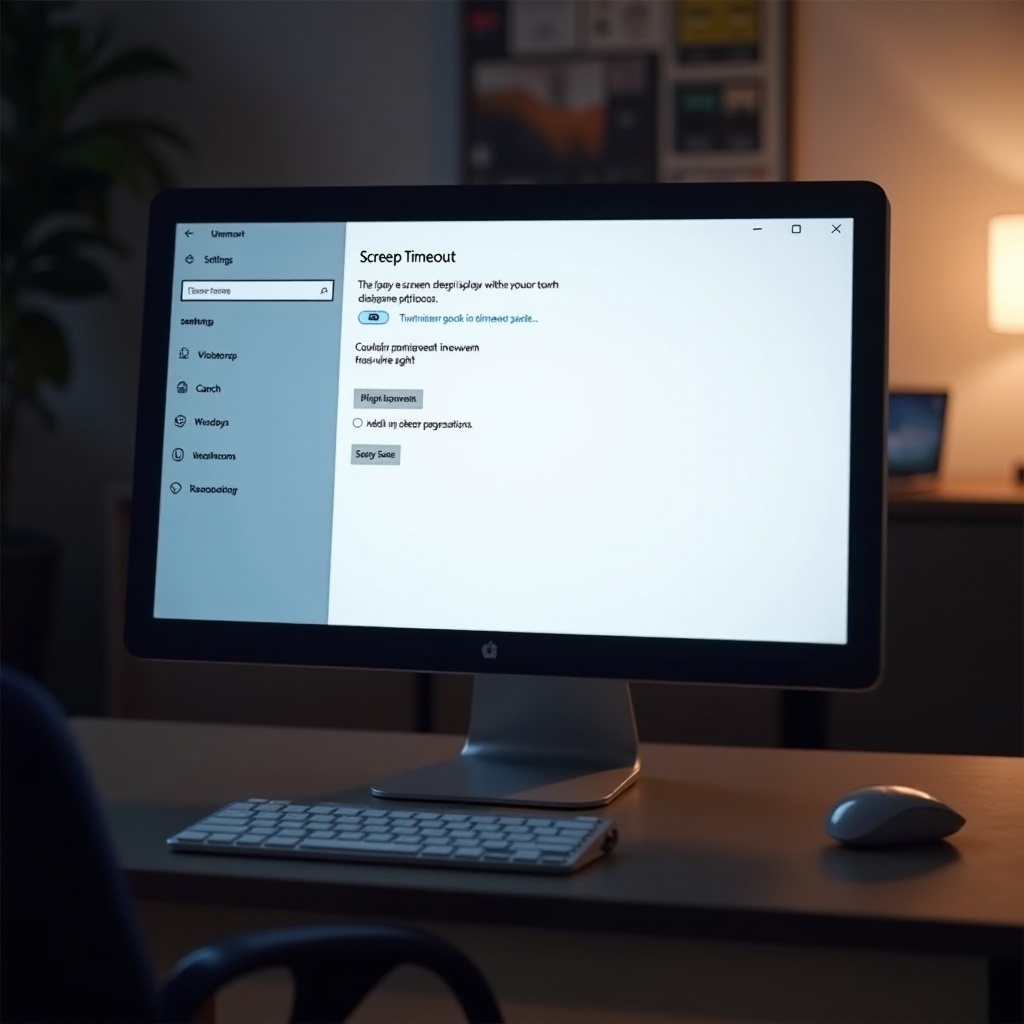
Configuring Power & Sleep Settings
Customizing your PC’s Power & Sleep options is crucial for balancing energy efficiency and ongoing tasks’ functionality.
Accessing Power & Sleep Settings
- Press ‘Windows key + I’ to access the Settings window.
- Choose ‘System’, then select ‘Power & Sleep’ from the menu on the left.
Adjusting Display Off Settings
- Under the ‘Screen’ section, specify the duration after which the display should turn off during plugged-in or battery power.
- Adjust these intervals to suit your needs, ensuring the display turns off without the system entering sleep mode.
Customizing Power Plans
- In the same ‘Power & Sleep’ window, click on ‘Additional power settings’.
- Select a power plan, then ‘Change plan settings’.
- Modify the ‘Turn off the display’ setting for both battery and plugged-in scenarios.
These options allow you to efficiently manage display settings without triggering sleep mode interruptions. However, third-party tools offer further customization and control.
Using Third-Party Tools to Manage Display
For advanced display management, third-party tools provide additional functionality beyond default Windows settings.
Benefits of Third-Party Tools
These applications often provide easier interfaces and customizable features that enable fine-tuned display management and automation.
Recommended Applications
- Monitor Off Utility: Quickly turn off the monitor using hotkeys, without altering sleep settings.
- NirCmd: A versatile command-line tool that facilitates display management effortlessly.
Setting Up and Using Tools
- Download and install your chosen third-party tool.
- Configure hotkeys or settings according to the tool’s instructions for effective management.
- Test its functionality to ensure it aligns with your configuration preferences.
By introducing these tools, users gain refined control over display settings, enhancing the native capabilities of Windows 10.
Troubleshooting Display and Sleep Issues
Identifying and correcting common display and sleep issues helps preserve your configured preferences.
Common Issues and Solutions
- Display not turning off as scheduled: Investigate any running applications or processes interrupting scheduled settings.
- Computer enters sleep unexpectedly: Verify that settings under Power & Sleep are correctly adjusted.
Ensuring Settings Persist
- Ensure configurations are saved properly after each change.
- Monitor system updates that might overwrite preferences.
Dealing with Unexpected Changes
If settings change without notice:
1. Recheck system settings or tool configurations as needed.
2. Reset third-party tools if necessary to maintain functionality.
Preemptive troubleshooting assists in maintaining expected performance from your display setup.
Advanced Customization with Command Prompt
For users seeking deeper customization, the Command Prompt offers robust methods for managing display settings without additional software.
Introduction to Command Prompt Techniques
The Windows Command Prompt permits the execution of specific commands for targeted and immediate control, ideal for advanced users seeking precision in display management.
Step-by-Step Commands for Display Control
- Use the command
nircmd.exe monitor offin Command Prompt to immediately turn off the display. - Employ the Task Scheduler to set commands for automatic execution at specified intervals.
Safety Tips for Using Command Prompt
- Understand each command’s function to prevent system disturbances.
- Backup vital files and settings before executing advanced commands.
Implementing these solutions directly through system commands offers precision and customization for the command-line adept user.
Conclusion
Effectively managing your Windows 10 display settings can significantly enhance your computing experience, conserving energy, and extending monitor life, while maintaining high productivity. From simple configurations to third-party applications and command-line mastery, these methods empower you to control your device’s functionality efficiently.
Frequently Asked Questions
How can I turn off the display using a keyboard shortcut in Windows 10?
You can use software like Monitor Off Utility to assign a hotkey for turning off the display.
What do I do if my settings keep reverting back?
Recheck your saved configurations, and ensure no power management software or updates are altering them.
Can turning off my display without sleep affect my computer’s performance?
No, turning off your display doesn’t impact performance; it mainly aids in energy conservation without affecting ongoing processes.